Documentation
Help centre
Step-by-step instructions for candidates and employers using SaluGPT.
Main flows
This section covers the most common SaluGPT journeys, from registration to video interview.
1. Create an account (candidate or company)
Initial SaluGPT registration as a candidate or employer.
- Open /auth/register (candidate) or /auth/register?role=employer (employer).
- Enter name, email and password (at least 8 characters).
- Click Create account.
- The system signs you in and redirects:
- candidate →
/candidato - employer →
/empresa
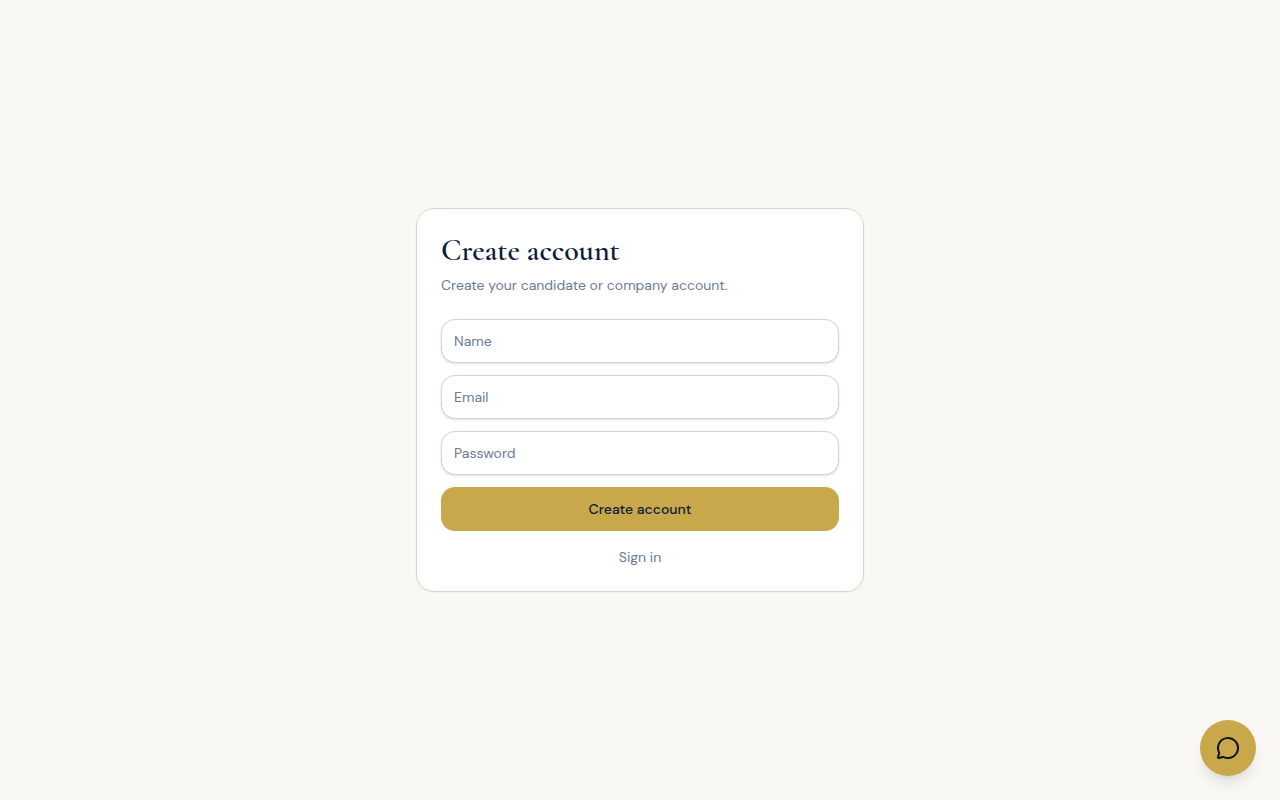
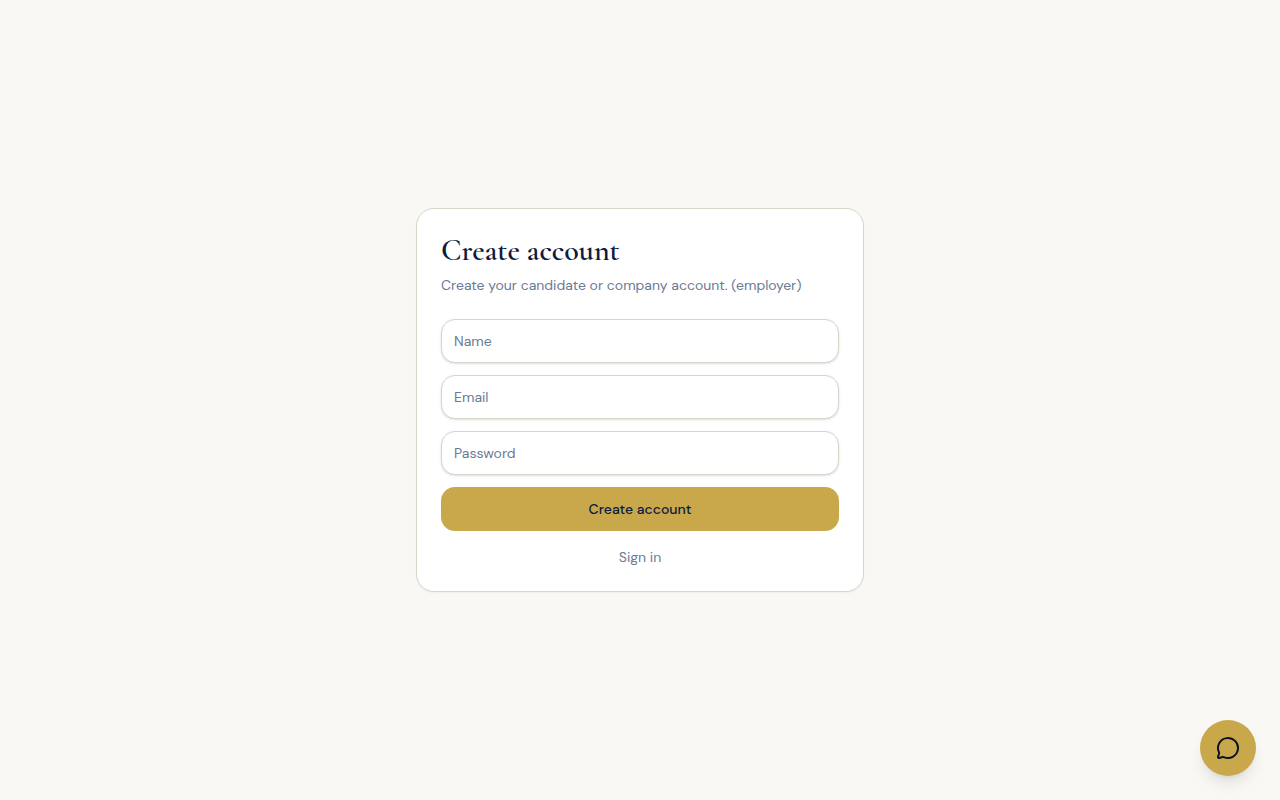
After registration, complete your profile (candidate) or company details (employer) before applying or posting jobs.
2. Candidate: find a job and apply
Find a job and submit the application on SaluGPT (platform or marketplace).
- On /vagas choose Platform or All.
- Open the detail page (
/vagas/[id]). - With a candidate session, click Apply.
- Track status at /candidato/candidaturas (stage board).
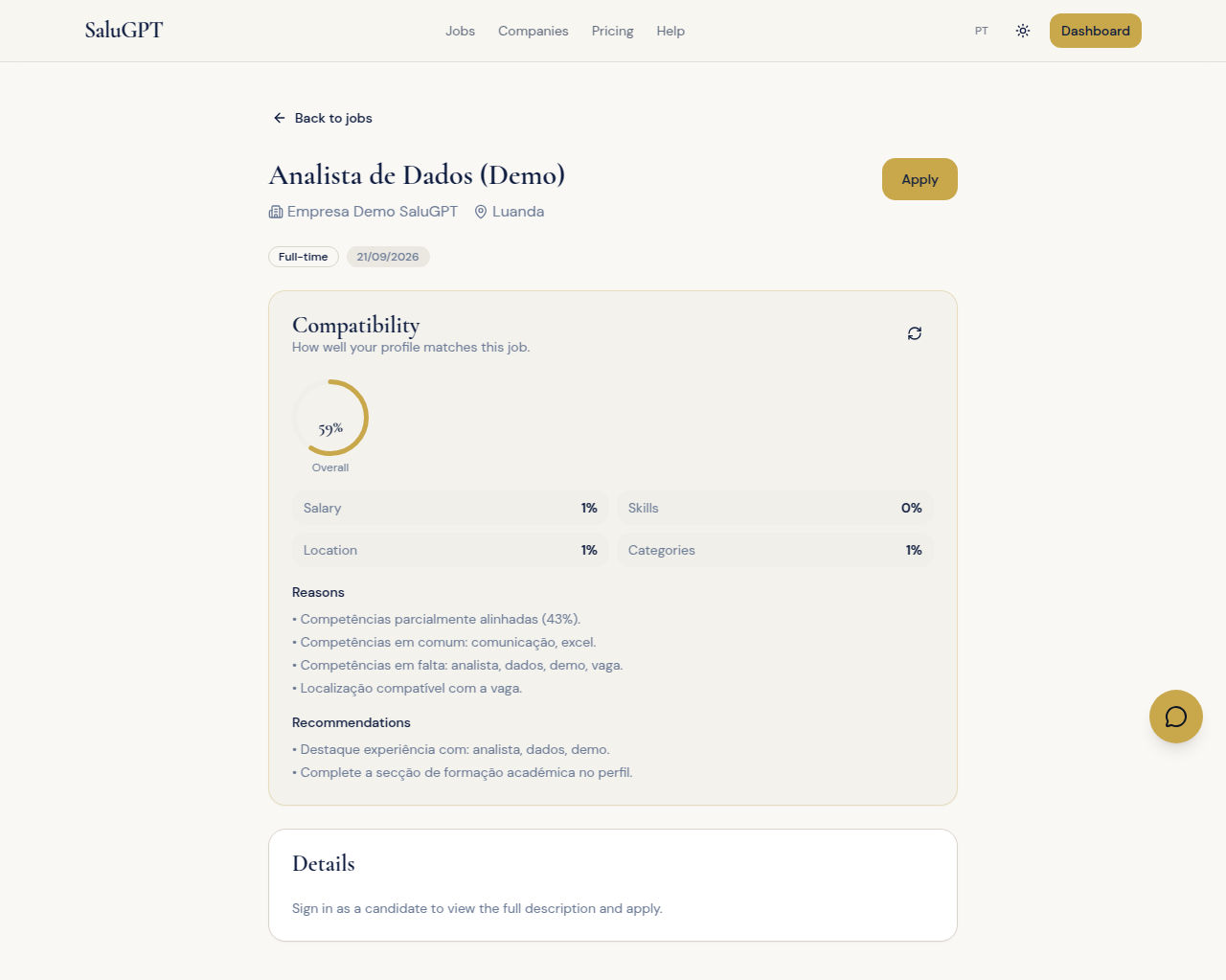
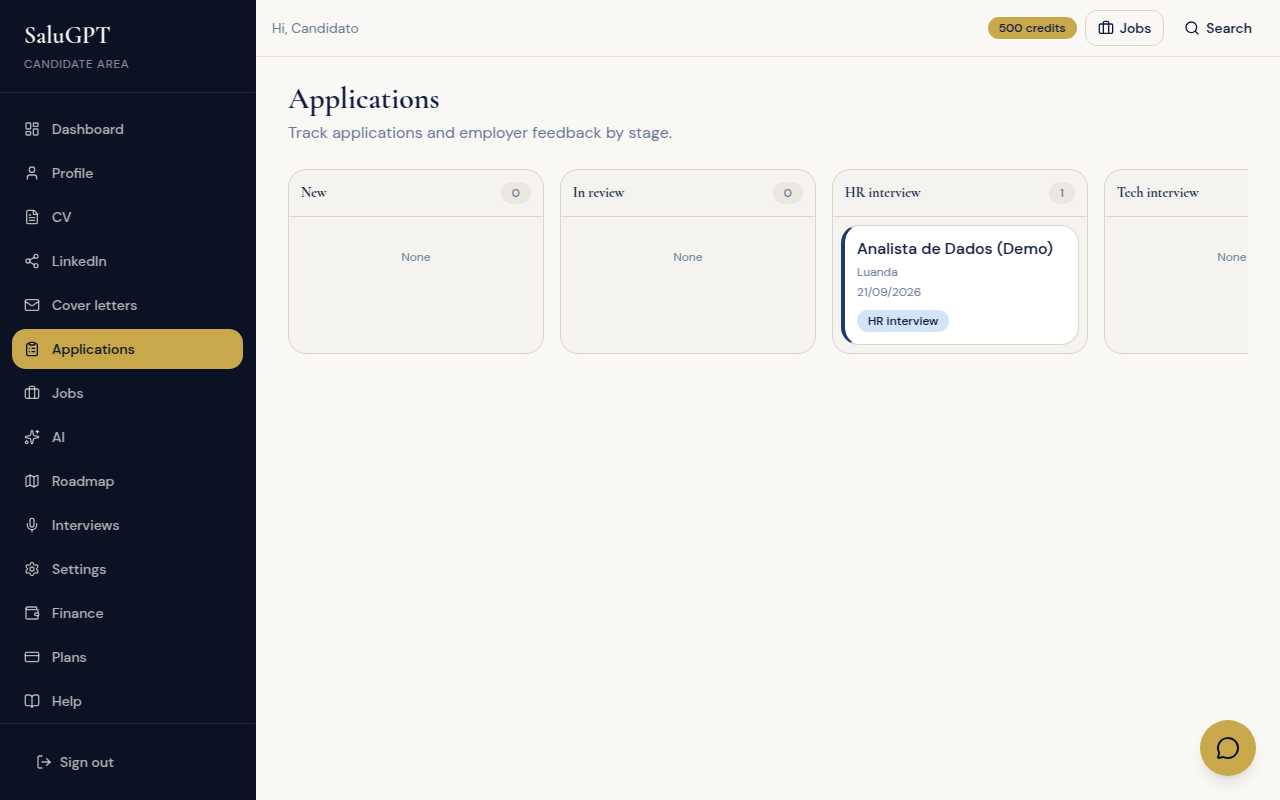
Note: marketplace jobs (/vagas/externas/...) are also applied to on SaluGPT and appear on the applications board.
3. Candidate: generate a CV with templates (Premium)
Requires an active Premium Candidate plan (see /planos).
- Open /candidato/cv.
- Under Generate CV, choose a template (Classic, Modern, Minimal, Executive), the language and optionally a target job.
- Click Generate CV (uses credits).
- Refresh the preview, edit the content and export PDF.
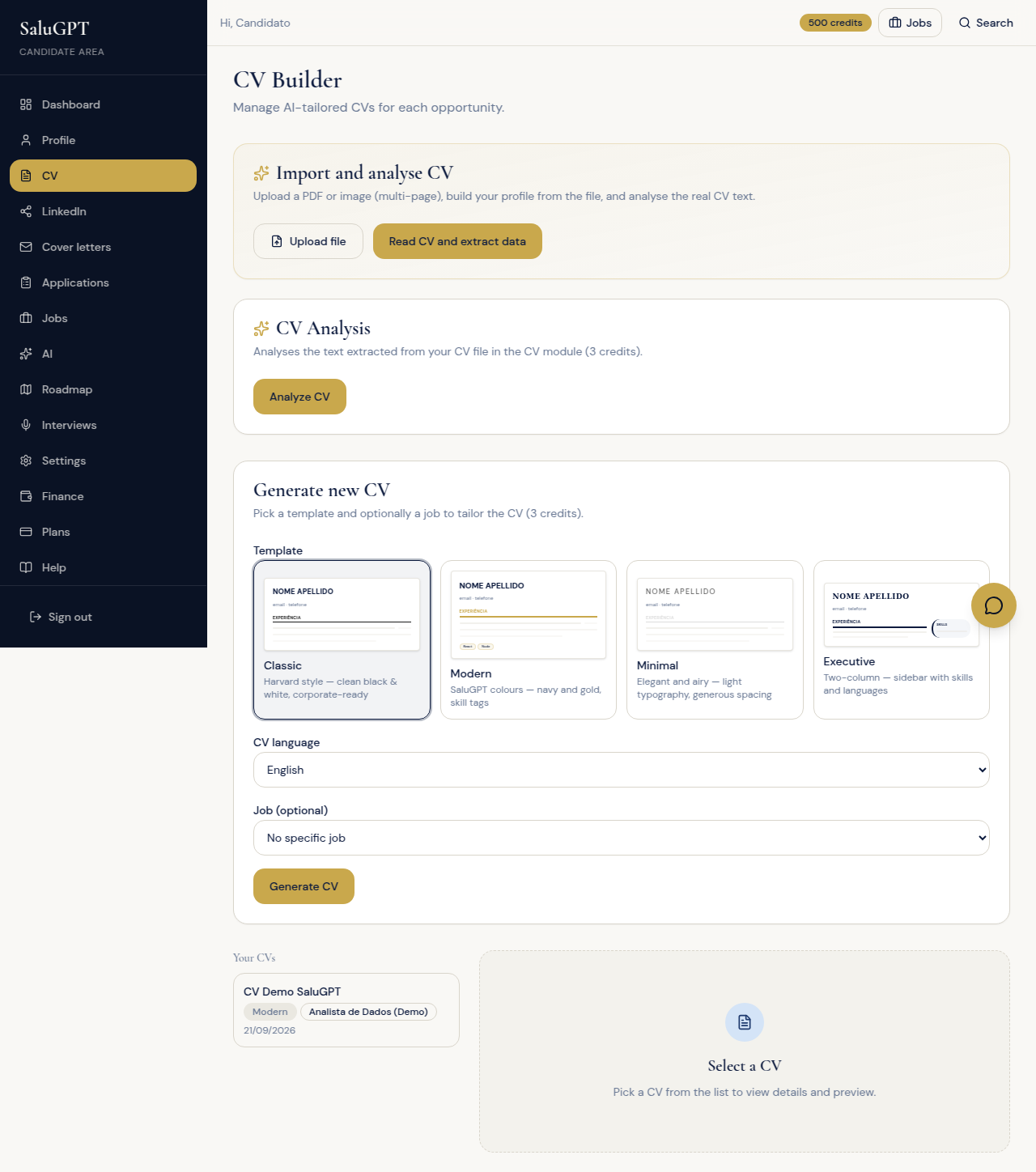
On the Free plan this area shows an upgrade prompt - templates only appear with Premium.
4. Candidate: cover letter
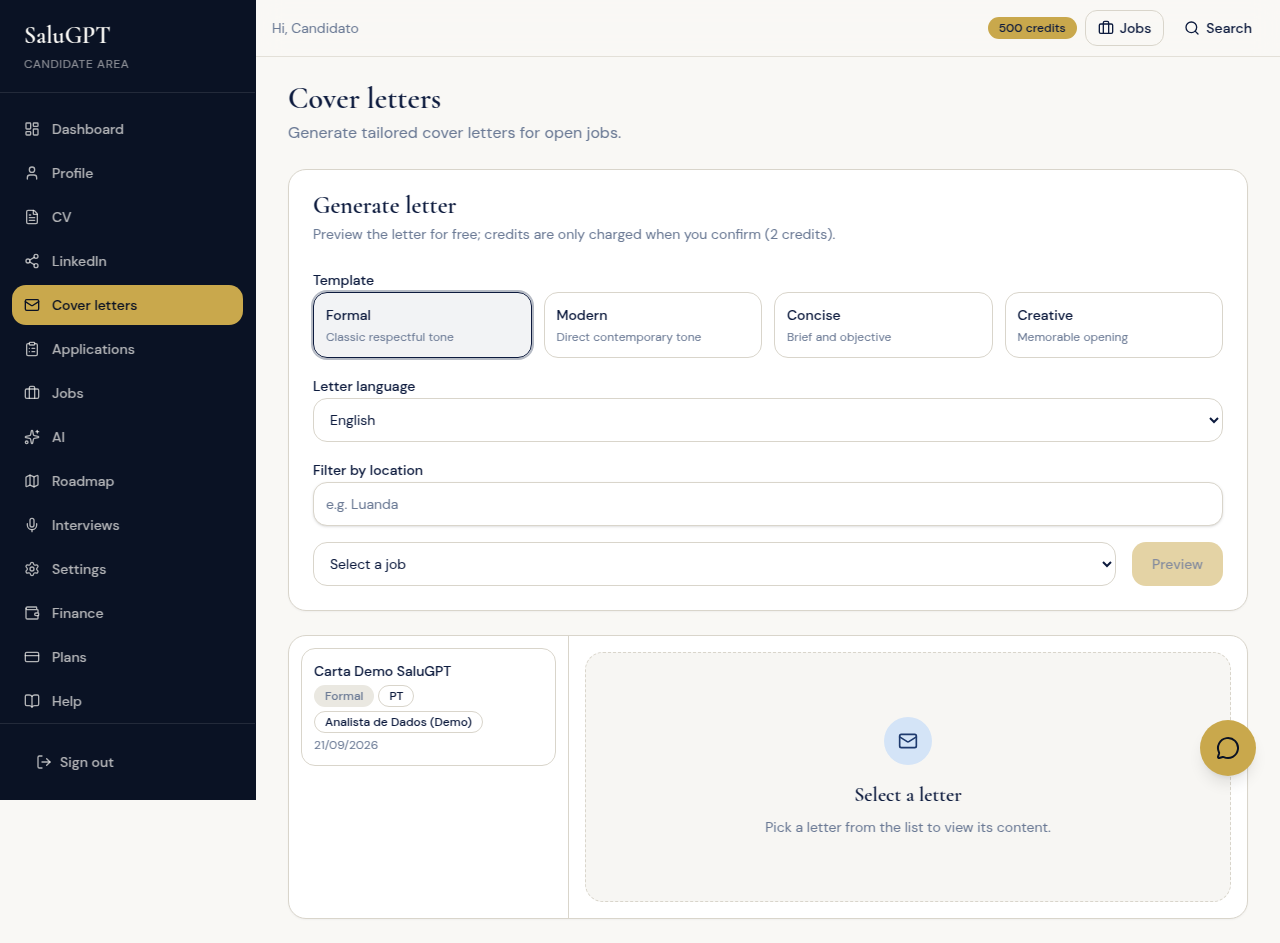
- Open /candidato/cartas.
- Choose a template (Formal, Modern, Concise, Creative), language and job.
- Preview, then Confirm and save.
- Export PDF or edit the saved letter.
5. Candidate: video interview (invite)
When the company schedules an interview:
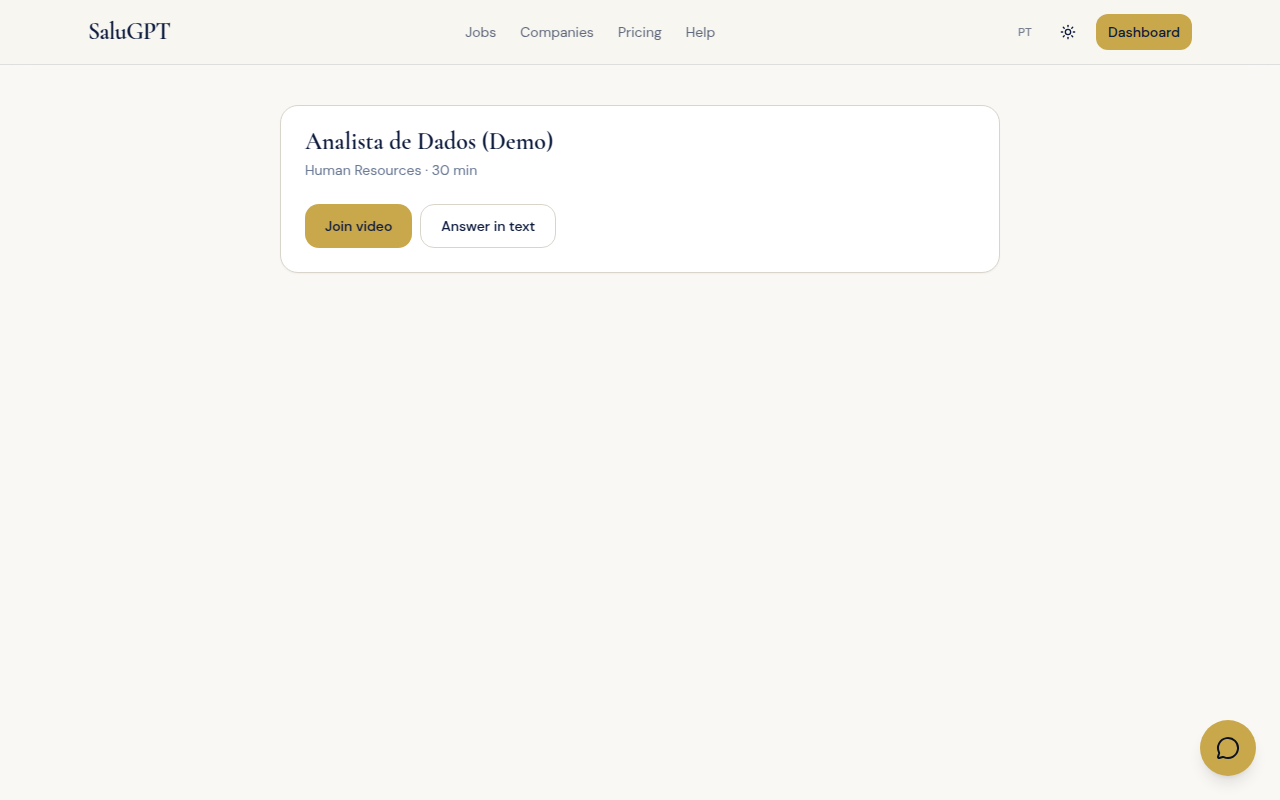
- You receive the shared link (
/entrevistas/s/[token]) or see the session at /candidato/entrevistas. - At the time: Join video (live call) or Reply in text (written answers).
- On the video call: use microphone/camera, request an extension if needed and hang up when finished.
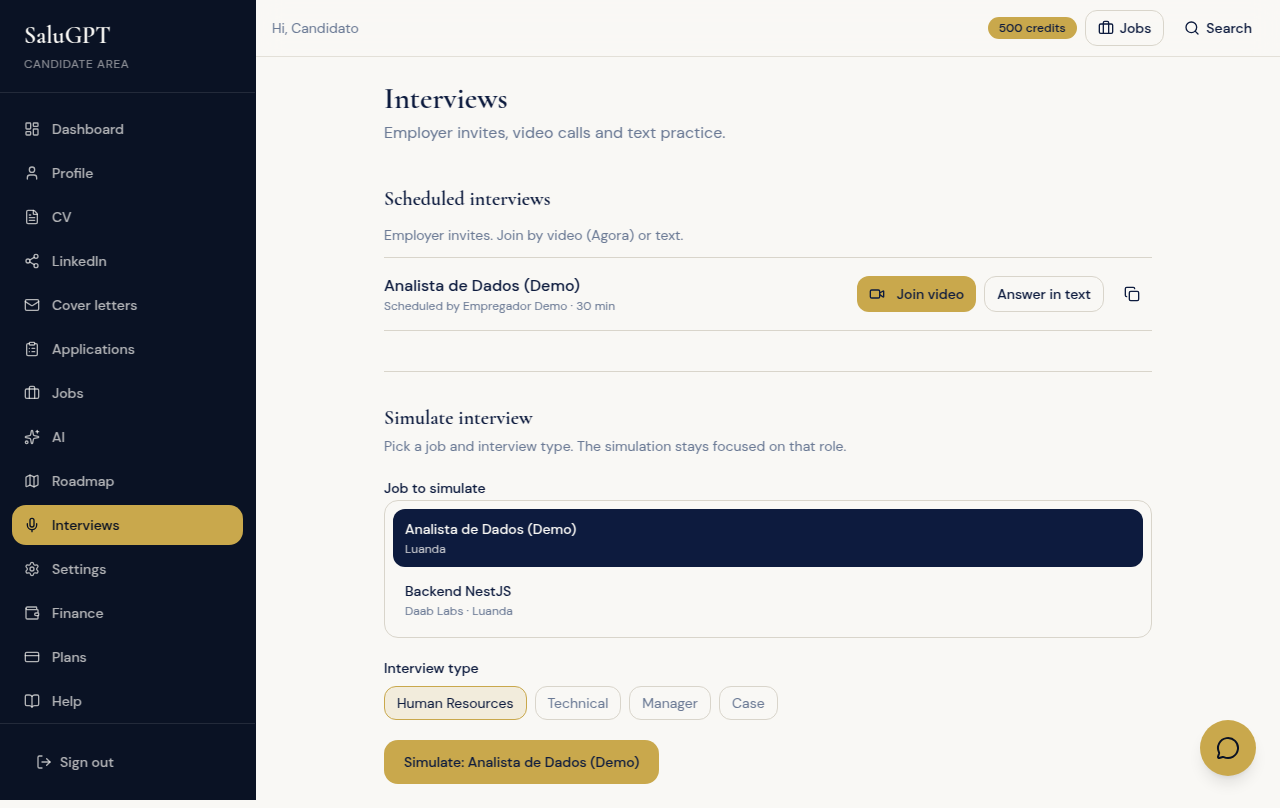
You can also practise alone at /candidato/entrevistas (HR, Technical, Manager or Case simulation) without a company invite.
6. Company: create account, company and publish jobs
- Register as an employer.
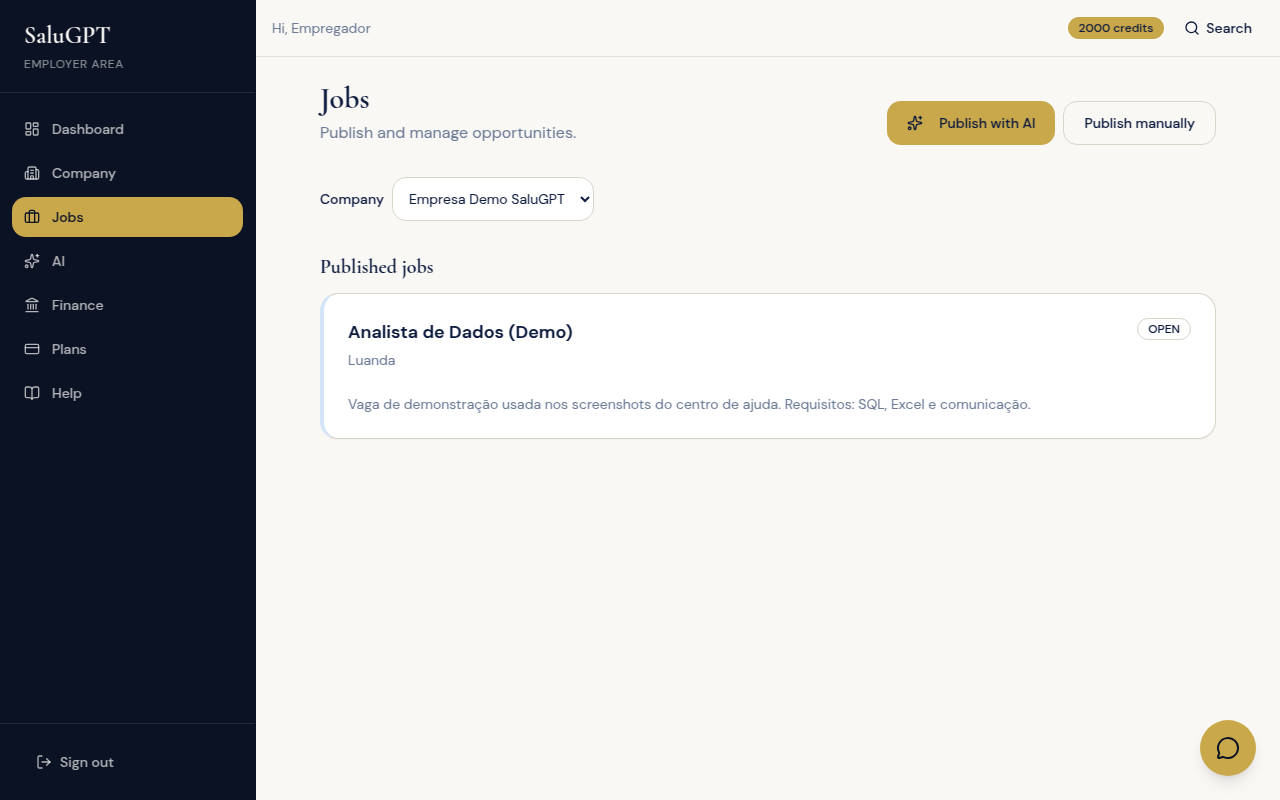
- At /empresa/empresa create or edit the company.
- At /empresa/vagas use New job, fill in title/description/location and Publish job.
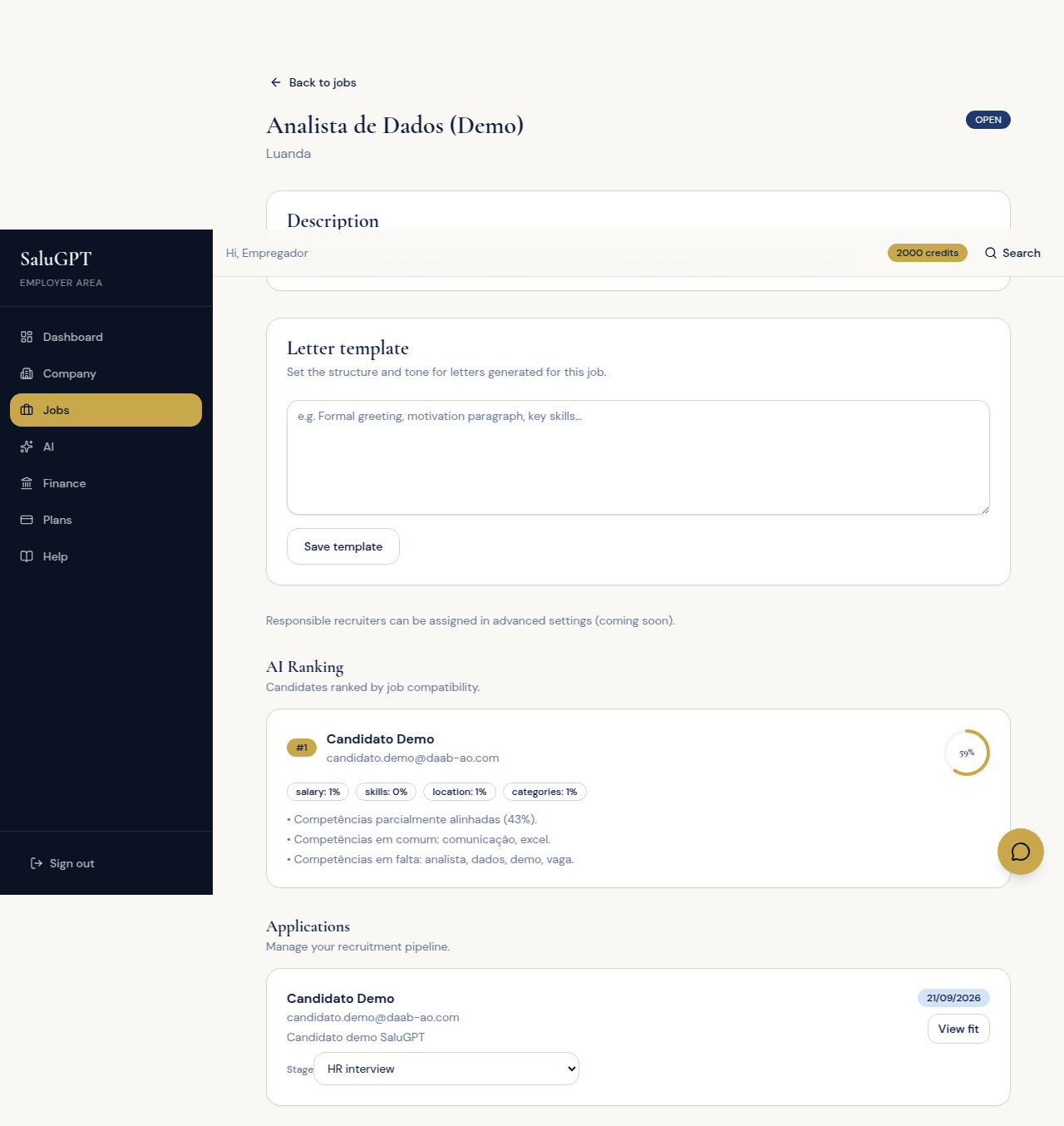
- Open
/empresa/vagas/[id]to manage applications.
7. Company: claim a marketplace job
If you find your organisation’s job on the marketplace:
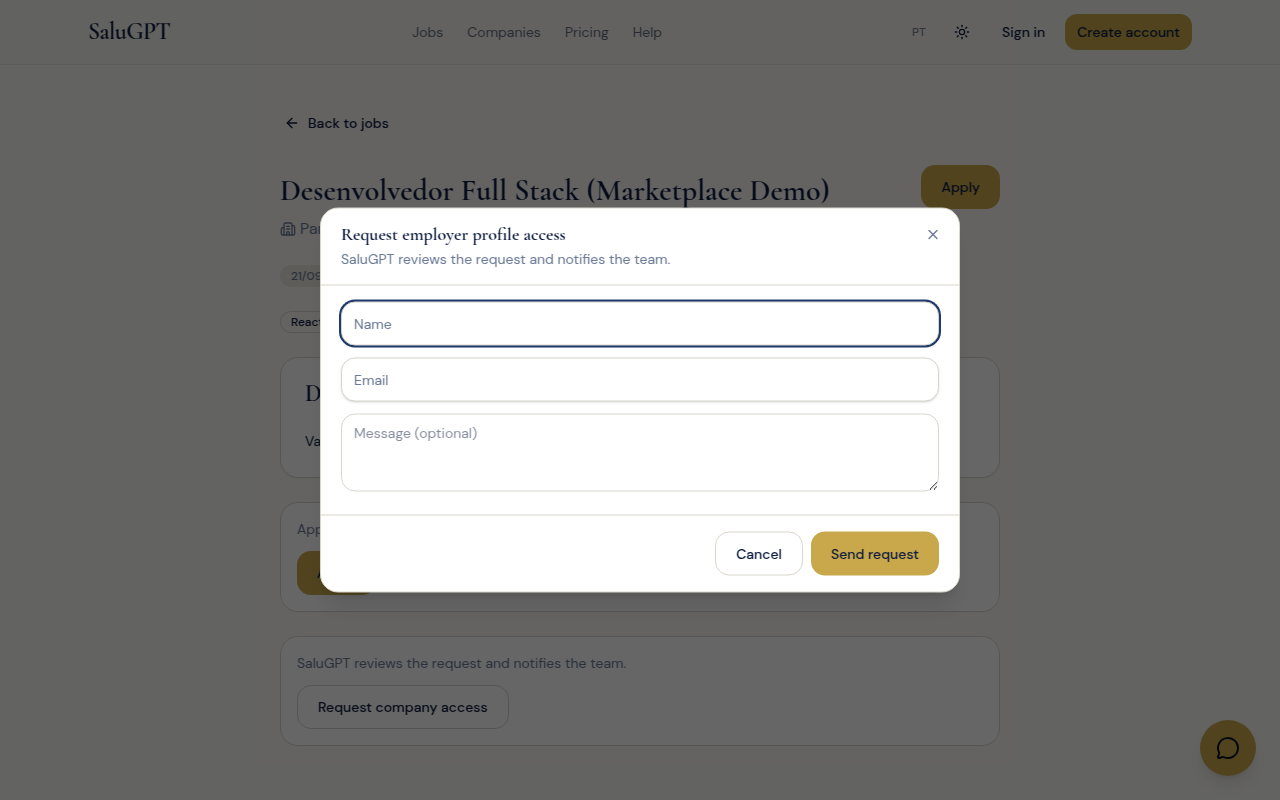
- Open
/vagas/externas/[id]. - Use Request company access and send name, email and message.
- The team reviews the request at
/admin/pedidos-acesso; after approval you can manage the linked account/company.
8. Company: screening - top candidates, fit and stages
- On the job detail page, review the ranking (best scores first).
- Per application: change Stage (New → In review → Interviews → Offer…).
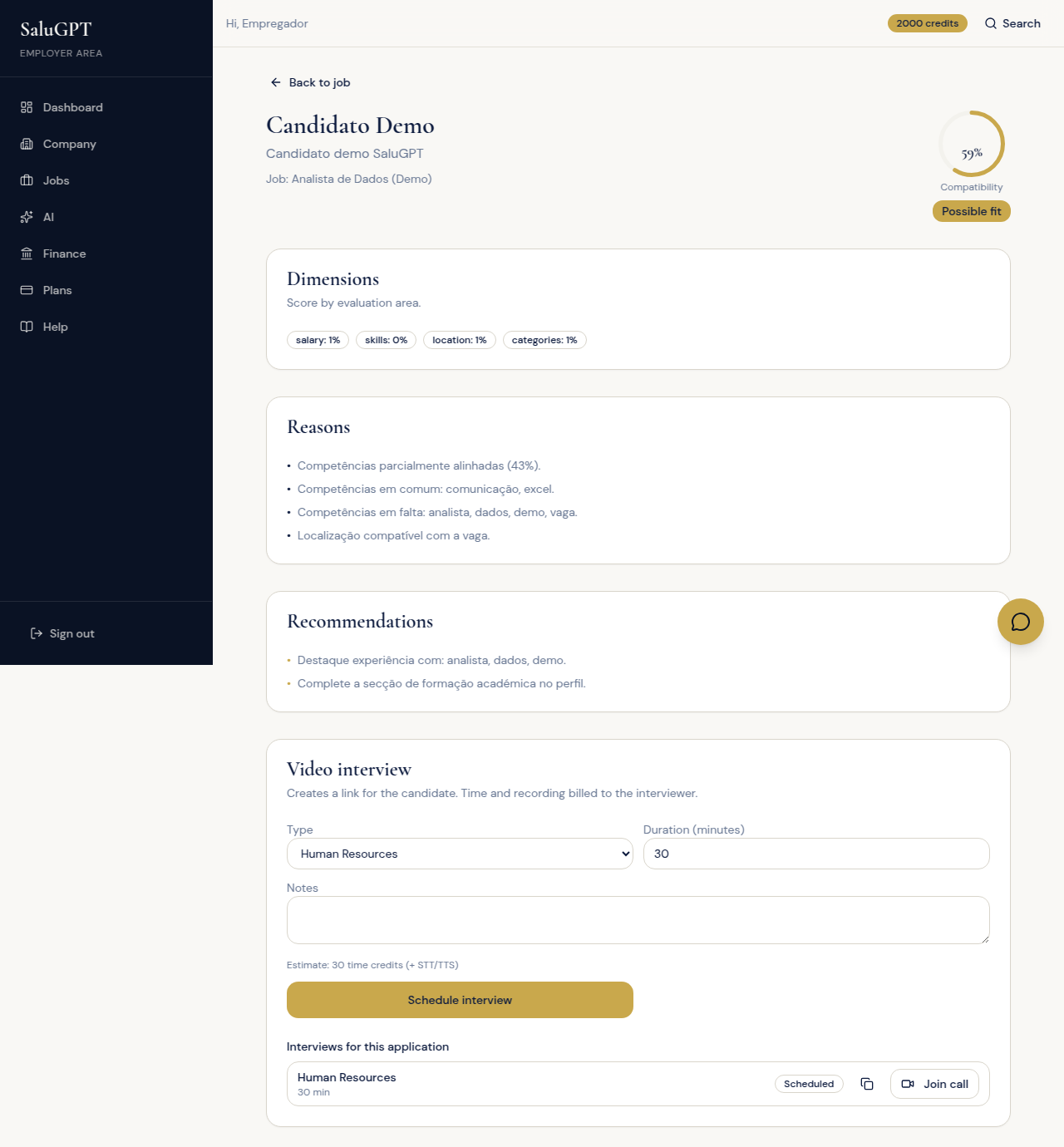
- Click View fit for
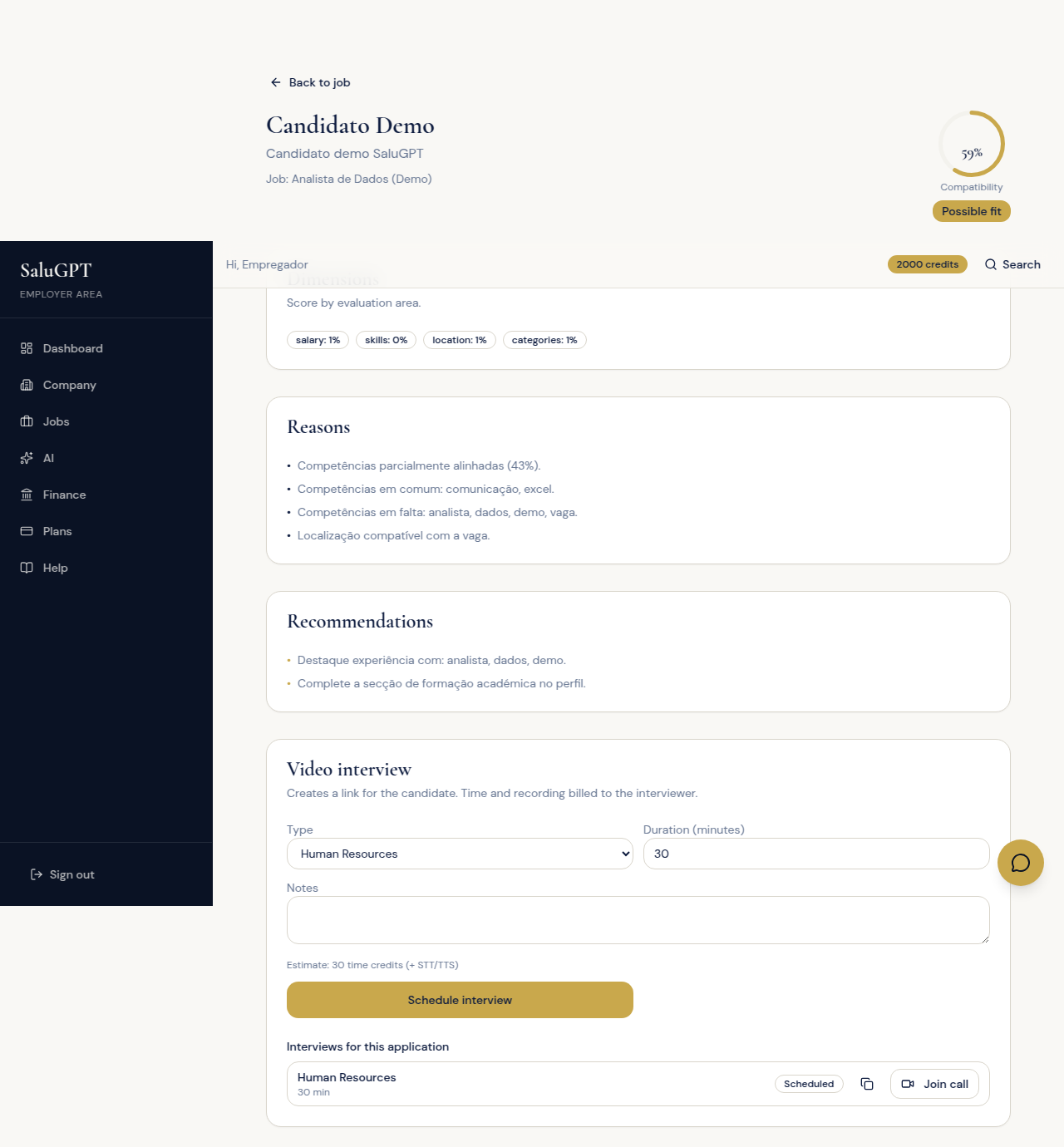
/empresa/candidatos/[id]?jobId=...(score, reasons and recommendations).
9. Company: schedule a video interview
On the candidate fit screen:
- Under Video interview, choose type (HR, Technical, Manager, Case) and duration.
- Click Schedule interview.
- Copy the link and send it to the candidate.
- At the scheduled time, use Join call (live video).
Full cycle summary
Register → Profile/Company
    ↓
Candidate: job → Apply → Applications
Company: publish job (or claim marketplace) → Ranking → Fit
    ↓
Company schedules video interview → Candidate joins via link
    ↓
CV / cover letters / AI (Premium) support preparation on both sides