Documentation
Help centre
Step-by-step instructions for candidates and employers using SaluGPT.
Account and access
How to create an account, sign in and sign out of SaluGPT (candidate or employer).
Sign in
Sign in with email and password to open the candidate or company area.
- Open Sign in or go to /auth/login.
- Enter your Email and Password.
- Click Sign in.
- After login:
- candidates go to the candidate area;
- employers go to the company area.
If you do not have an account yet, use Create account.
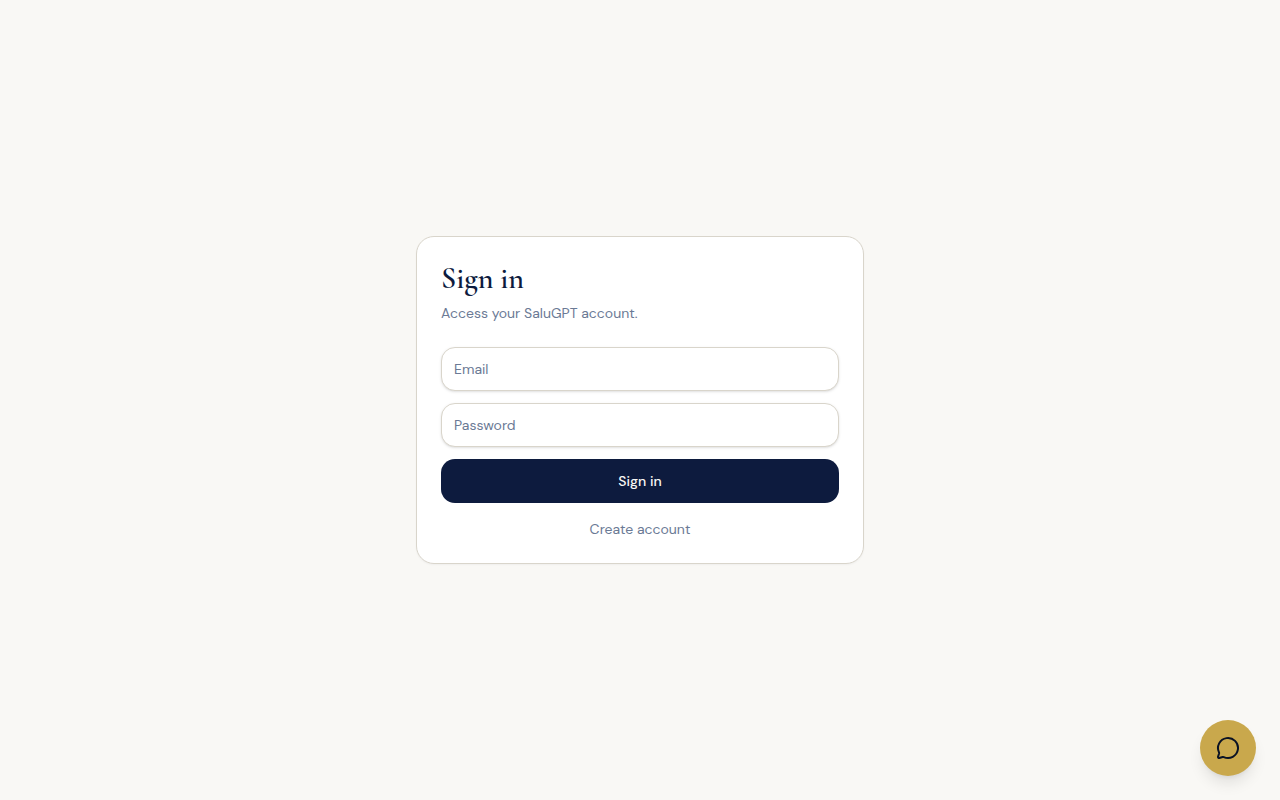
Create a candidate account
Free registration for job seekers: creates your profile so you can apply and use candidate tools.
- Open /auth/register.
- Enter Name, Email and Password (at least 8 characters).
- Click Create account.
- You will use the candidate area.
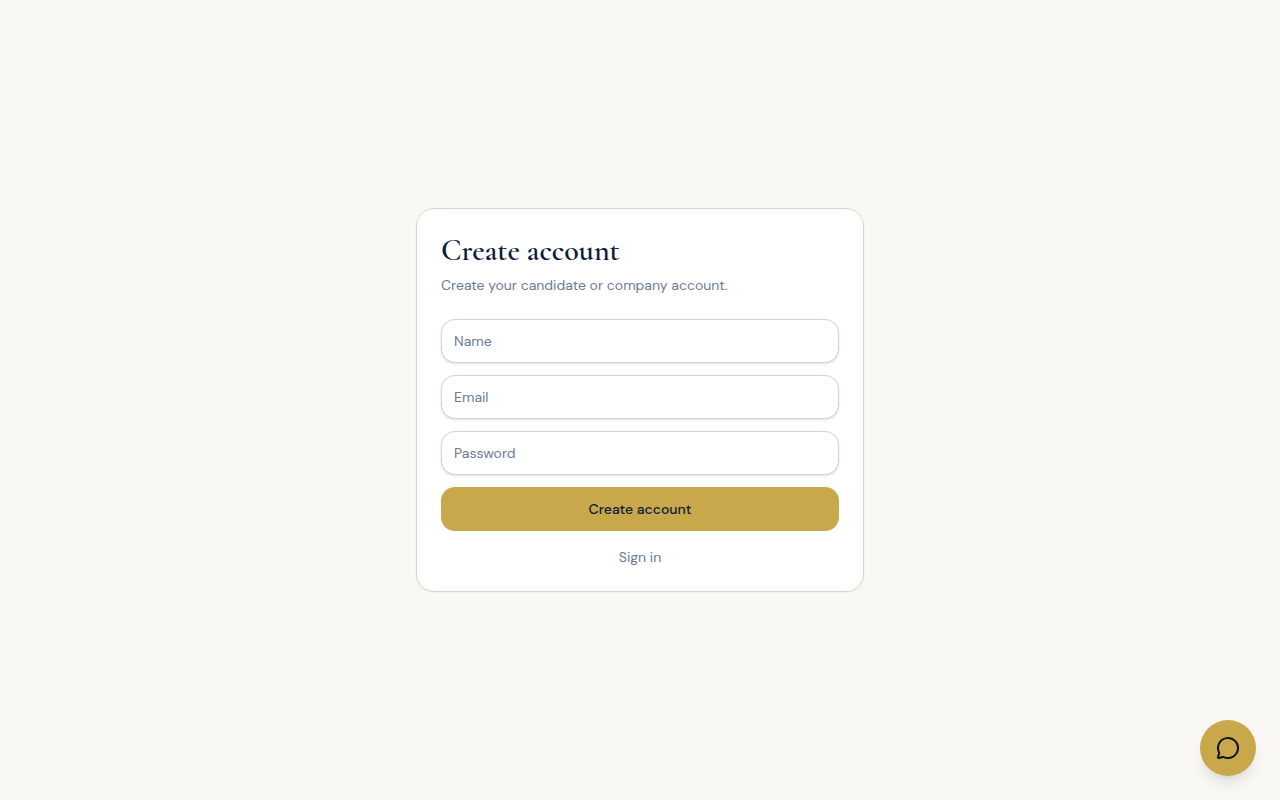
Create an employer account
Registration for employers: creates the account that posts jobs and manages applications.
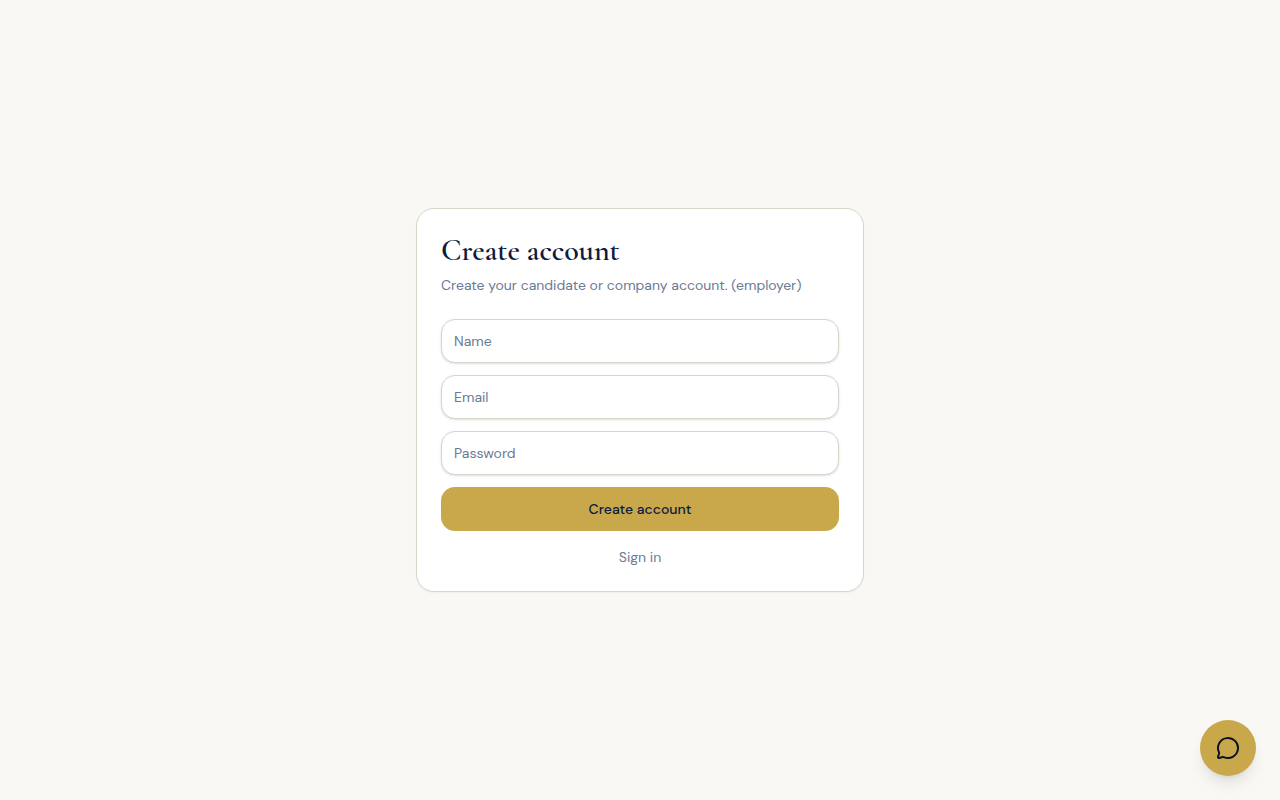
- On the home page choose Post a job or I am a company, or open /auth/register?role=employer.
- Fill in the same fields.
- Click Create account.
- You will use the company area.
Sign out
Leave your account securely from the sidebar of the signed-in area.
In the sidebar of the signed-in area, use Sign out.